PC Optimization in Unreal Engine 5.7 Projects: Hardware Targets, Asset Management, and Professional Profiling Strategies
Offers professional workflows and practical strategies for PC optimization in Unreal Engine 5.7 projects. Target hardware ranges (low/medium/high/ultra), performance budgets (FPS, frame time, CPU/GPU shares), asset optimization (mesh, LOD, texture, Nanite, virtual texture, etc.), render settings (Lumen, ray tracing, shadows, reflections, post-process), quality and scalability settings, profiling tools (Unreal Insights, GPU Profiler, RenderDoc, PIX, etc.) and workflows, packaging/build pipelines (packaging, cook, shader compilation, level loading), automated and manual testing strategies, performance regression tests with CI/CD, hardware/driver specific optimizations, memory and stream management, and multiplayer/networking topics are covered. Concrete workflows, recommended settings/ranges, pros and cons, common pitfalls, and time/labor estimates are provided for each step. Additionally, quality presets and settings, profile tools and use cases, asset optimization techniques and expected gains are presented with comparison tables. Sample command lines, Unreal console commands, and simple CI test cases are added.
Hardware Targets and Performance Budgets
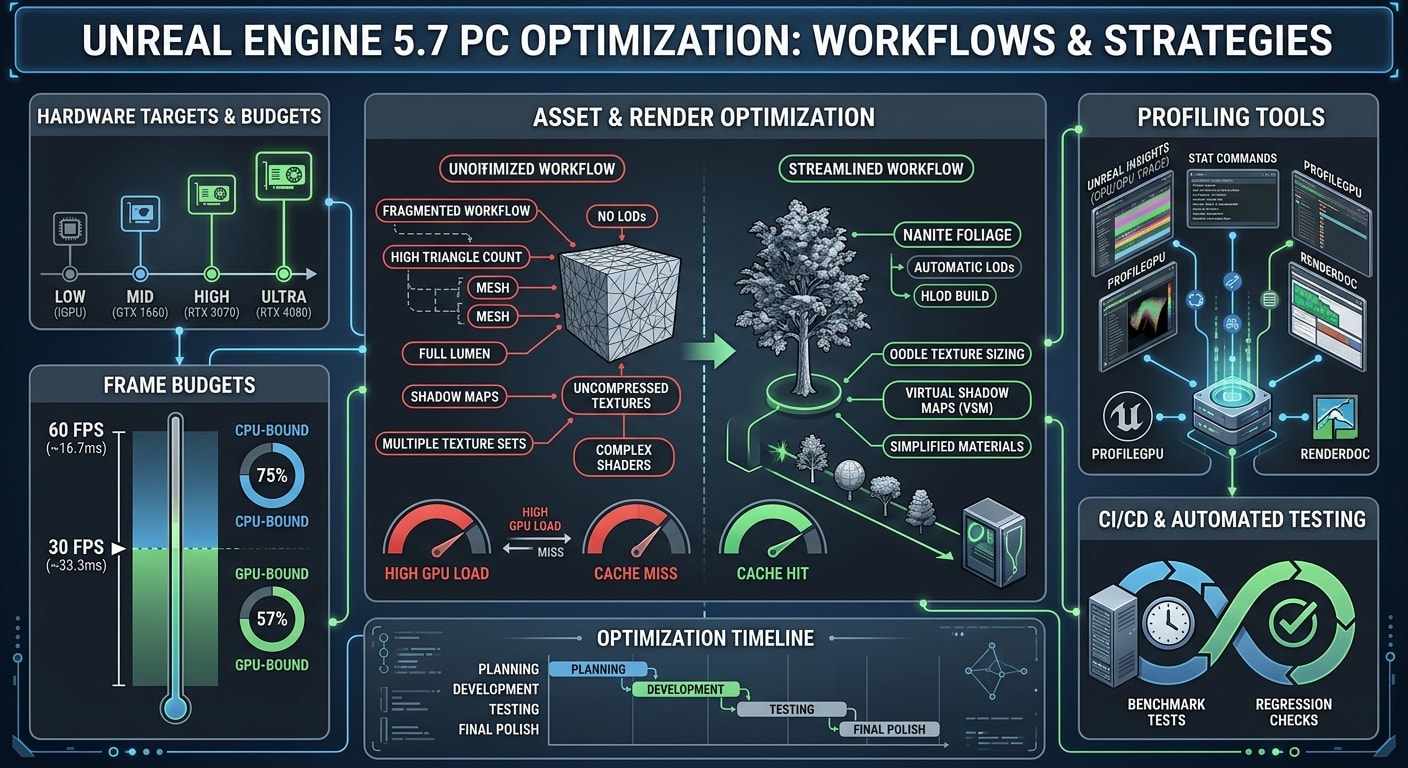
Since the PC platform contains a wide variety of hardware, it is important to categorize target systems. For example, systems with integrated or older GPUs can be considered "low-end"; current mid-range GPUs (e.g., GTX 1660) and CPUs as "medium-end"; modern high-end GPUs (e.g., RTX 3070) as "high-end"; and top-tier hardware (like RTX 4080) as "ultra". Minimum performance of 1080p at 30 FPS on medium settings, and 1440p at 60 FPS on high settings are the recommended targets. The frame budget is ~16.66 ms for 60 FPS and ~33 ms for 30 FPS. When setting performance targets, resolution, graphics settings, minimum/recommended systems (CPU, GPU, RAM, VRAM) must be taken into account, and profiling should be done in a consistent hardware and driver environment.
Frame Budgets: 60 FPS ≈ 16.7 ms; 33.3 ms ≈ 30 FPS (e.g., for mobile or low-end). Higher rates like 144 FPS ≈ 6.9 ms can also be used for VR/high-refresh rate monitors. The distribution of the frame budget is generally equalized between CPU and GPU or adjusted according to the target device load. For instance, a system utilizing 10–20% CPU and 80–90% GPU might be GPU-bound. >95% GPU usage indicates GPU-boundness; low GPU usage and high GameThread time indicate CPU-boundness.
Hardware Profile: New iGPUs like Intel Arc should also be taken into account; Steam hardware surveys and GPU profile scores can be used as a starting point. Always use the most up-to-date GPU drivers for profiling, close unnecessary background applications, and reset GPU overclock settings when necessary. Disabling hardware-accelerated GPU scheduling in Windows is recommended to get accurate GPU/CPU usage information.
Asset Optimization
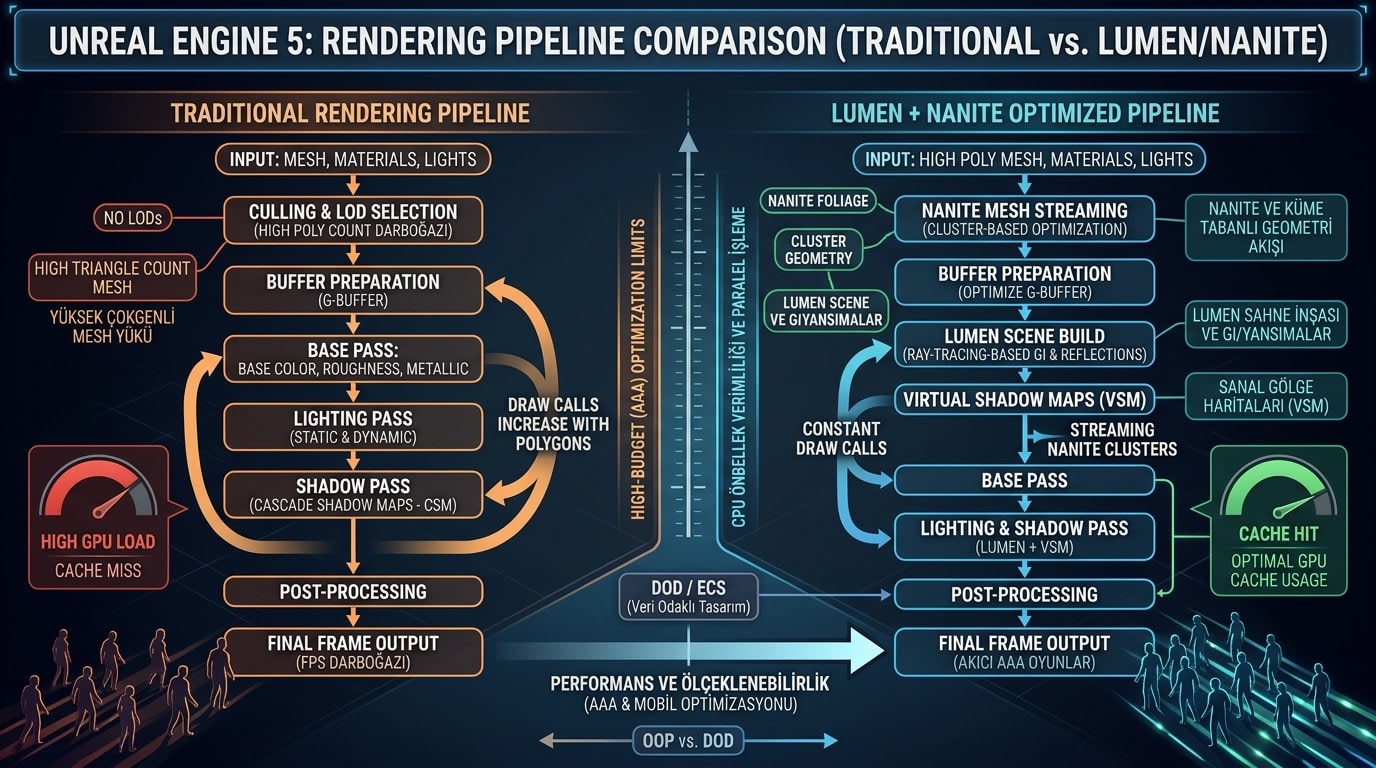
Mesh and LOD Management: Divide complex models into LOD (Level of Detail) levels. Creating 3–5 LODs for each static mesh eases the detail load in the distance. Low-detail LODs can reduce the triangle count by 50–90%. For example, the transition of a tree from LOD0 to LOD3 greatly reduces shading and draw costs. The use of Nanite is recommended only for high-poly, opaque objects. Nanite automatically manages polygon flow on objects with bulky bodies like trees or rock formations, eliminating the need for manual LODs; thus, the target FPS can be maintained with much higher foliage placement (e.g., 58 FPS with Nanite on 250K trees vs. traditional 1 2 3 21 • 45 • 6 7 8 1
41 FPS). However, Nanite is not always advantageous: very simple geometry like single-surface grass cards render faster with traditional methods. Nanite may have an extra VRAM cost; therefore, monitor memory usage with stat RHI. Simplify or share complex materials whenever possible (e.g., using a single texture atlas instead of multiple materials). Creating HLODs (High-Level LODs) reduces draw call count by combining and converting distant buildings into triangles. Shadow proxies (via merge actors / Geometry Script) that represent high polygons with a single polygon also reduce shadow costs.
Texture and Virtual Texture (VT): Determine texture sizes according to target VRAM: maximum 1K–2K for low-end hardware, 4K+ for high-end hardware. Prevent excessive memory and bandwidth consumption by using mipmaps. Virtual Textures provide VRAM savings for very large world textures, but they increase shader complexity and can incur additional computation costs. For example, using 8K for separate color and normal textures in a large open-world project increases memory load instead of performance. As a general rule, virtual textures are preferred for projects with complex details and memory constraints; reverting to normal is better for simple scenes. Texture compression (e.g., Oodle Texture) reduces package size by 50% or more and speeds up load times.
Material Optimization: Use simple materials as much as possible. Limit the number of unique materials used in a scene; achieve draw call reduction by atlasing materials. Multi-layered materials, mask filters, and materials containing dynamic deformation (WPO, vertex displacement) increase GPU costs; prefer these only when necessary and on objects that are not viewed from a distance. Similarly, masked textures also reduce efficiency by increasing the number of transparent pixels. Set appropriate culling distances for objects to optimize visibility; for example, culling small bushes beyond 300–500m makes sense.
Render Settings and Lighting
Lumen and Ray Tracing: Lumen dynamic GI provides high-quality lighting but is heavy. If you are targeting low-end systems, reduce the Lumen Detail level or turn it off. Check CVars like r.LumenSceneDetail and r.LumenReflections.Quality. Save CPU cost by using Lumen instead of Static Ray Tracing. If Virtual Shadow Maps (VSM) are used for shadowing, lower the shadow LOD on the low-end: r.Shadow.NaniteLODBias can be used to set lower detail (LOD) usage in Nanite shadows. If multi-layered ray reflections are required, switch to screen-space reflections (SSR) on systems with limited memory.

Shadows and Reflections: Dynamic shadows are generally one of the most expensive operations. For low quality, set directional (CSM) shadows at a lower texture resolution (r.ShadowQuality, r.CascadeDistributionExponent). Use tactics such as turning them off completely or reducing r.Shadow.DistanceScale to keep shadows idle on mobile or integrated GPUs. Minimize the number of reflection captures; excessive cube maps increase GPU load. Prefer planimetry (for water surfaces, etc.) or screen-space reflections (r.SSR.Quality) for old/mid-range.
Post-Process and Visual Effects: Post-process effects (depth of field, bloom, tone mapping, etc.) affect performance. Turn off depth of field and motion blur if unnecessary (r.DepthOfFieldQuality=0, r.MotionBlurQuality=0). Set effects like Bloom, lens flares, volumetric fog to low-level or turn them off. Fine-tune screen scaling (r.ScreenPercentage) between 70–150% based on target settings; a lower percentage significantly reduces GPU load along with a loss in quality. For instance, while 100% screen scale can be used on Ultra settings, 70–80% might be sufficient for a low-end system. If real-time lighting calculation is required, test low-resolution ray-traced 89 10 11 12 13 14 15 16 11 2
effects (Ray Traced Shadow, Reflection); if it degrades performance, revert to normal shadows and SSR.
Scalability and Quality Settings
Unreal Engine 5 provides Engine Scalability presets to easily scale quality settings according to hardware. Standard quality levels are Low, Medium, High, Epic, and Cinematic. These presets change many CVars at once (AA, shadow, texture resolution, post-process detail, effect level, etc.). For example, while shadow quality and texture detail are set to the lowest level on the Low level, the highest quality and most detailed settings are enabled on the Epic level. It is important to select an appropriate scale preset initially with comprehensive benchmark tests (synthbenchmark) based on the target hardware range. If necessary, CVars can be fine-tuned with Device Profile or DefaultScalability.ini dedicated to each quality level. During the development process, dynamic changes can be made via the settings panel using ~ or through r.DefaultFeature.* and r.Scalability.* console commands (e.g., r.ViewDistanceQuality 2). Sample quality presets and their equivalents:
Quality LevelScreen Percentage (%)View Distance QualityShadow QualityTexture QualityEffect QualityLow70LowLow (0)Low (0)Low (0)Medium85MediumMedium (1)Medium (1)Medium (1)High100HighHigh (2)High (2)High (2)Epic120HighestEpic (3)Epic (3)Epic (3)Cinematic150Ultra (if available)Ultra (4)Ultra (4)Ultra (4)
These presets can be applied at game startup or in the settings menu via the ScalabilityQuality command (e.g., r.ScalabilityQuality 3 for High). In addition, smarter leveling can be done by assigning importance orders based on distance to different objects in the scene using Significance Manager.
Profiling Tools and Workflows
The core step of optimization is profiling. The main tools and commands to be used in UE5.7 are:
Unreal Insights: Records CPU/GPU/thread activities in detail across multiple frames. Run UnrealInsights.exe in the Editor and start the game, or trigger the connection inside the game using the Trace.Send 127.0.0.1 command. Recording is started and stopped with Trace.Pause and Trace.Resume. Insights presents hundreds of metrics graphically and clarifies bottlenecks.
Stat Commands: Fast for tracking real-time data in-game. For example, stat fps, stat unit, stat unitgraph show FPS and main thread times. stat gpu summarizes GPU load (frame time, draw call, triangle count). stat scenerendering gives ray traversal details, stat nanite gives Nanite triangle/instance statistics. stat RHI shows the memory counter. Initial analyses are made with these commands; for example, if DrawTime is close to FrameTime, it is GPU-bound; if it is close to GameTime, it is CPU-bound.
ProfileGPU: With r.ProfileGPU=1, the GPU timeline of each frame is written to the Log. This is useful for finding simple GPU bottlenecks. 1717 18 19 • 20 21 • 2223 23 23 24 • 3
RenderDoc: Captures a single-frame GPU (DirectX12/Vulkan) and examines shader stages. Used for deep graphics pipeline analyses.
PIX (Windows): Microsoft's DX12 GPU analysis tool. Preferred for inline graphics timing, guards, etc. Connects to the game with the -AttachPix parameter (UE5.5+).
PresentMon: Reports GPU/CPU utilization rates as a time series. Ideal for seeing the bottleneck type in live graphs.
GPUView: Analyzes GPU/CPU subsystems in detail with Windows Performance Toolkit. Used specifically for D3D command queue, stalls, and GPU draw details (hardware graphics timing should be disabled while profiling).
VTune / uProf: Deep CPU profilers like Intel Intel VTune or AMD uProf are used to examine code segments, memory patterns, and branch prediction efficiency in the game.
Comparison table example:
ToolUsage Area / PurposeUnreal InsightsMulti-frame CPU/GPU execution analysis (program flow)Stat CommandsReal-time in-game metrics (FPS, thread times)ProfileGPUFrame-based GPU timing (Draw event details)RenderDocSingle-frame GPU capture and detailed drawcall analysisPIX (Windows)GPU timing/dx API analysis, performance bridgesPresentMonReal-time GPU/CPU usage graphsGPUViewLow-level GPU/CPU pipeline and interaction analysisVTune / uProfCPU hotspot, memory bandwidth, etc. detailed analysis
Profiling Workflow: Usually, a quick check is done with stat commands first. If an issue is identified, a comprehensive recording is made with Unreal Insights. If the CPU workload is heavy, code steps are examined with tools like VTune; if there is a GPU bottleneck, a frame is captured with RenderDoc/PIX/RGP. For example, you can start the game in Test configuration and collect output data using Trace.Pause/Resume over a camera tour (see below). Settings are changed at identified bottlenecks and re-profiling is done. Test or Shipping configuration is always recommended for profiling (Test configuration supports Insights). If Development configuration is used, overhead-causing DRED can be stripped (-dpcvars=r.D3D12.DRED=0,r.D3D12.LightweightDRED=0).
Packaging and Build Pipeline
Multi-Build and Packaging: The Cook & Package process is run using the Unreal Automation Tool (UAT) for the final build. Sample command:
RunUAT.batBuildCookRun-project="MyGame.uproject"-noP4-platform=Win64-clientconfig=Shipping-cook-allmaps-archive-archivedirectory="Build"-pak -prereqs
This command packages all maps, creates an Oodle compressed pak file. Additionally, Shader Precaching (-BuildAllShaderFiles) and PSO caching (-CacheShaders) processes should be performed. If packaging via the GUI, settings like "Include pak file" and "Shipping" are checked from the project's Project Settings > Packaging options. For shader compilation time, PSO Bundle Precache can be used to pre-cache shaders in the console before the game launches.
Configuration Settings: As mentioned above, the Test configuration offers performance close to profiling. Commandlet (e.g., UnrealEditor-Cmd.exe) or UAT is generally used in CI/CD. Sample CI script:
UE4Editor-Cmd.exeMyGame.uproject-run=Cook-targetplatform=Win64-CrashForUAT-unattended
Then the output is packaged with UnrealPak.exe. The process can also include automated server/client builds (for example, for multiplayer). Options like Incremental Cooking and Shader\Pak export speed up repetitions during the development process.
Manual and Automated Test Strategies
Manual Testing: Analyze critical scenes by running them repeatedly from a fixed location or via a camera tour. You can teleport to specific coordinates using UE's BugIt console commands (e.g., BugItGo x y z). This ensures every test starts from the same position. FPS and frametime variations are monitored with stat fps and stat unit. As the project progresses, check real-time performance by periodically performing stress tests on different PCs (high frame movements, Multiplayer scenarios, etc.).
Automated Testing: Unreal 5's experimental Automated Performance Tests features can be used. This is used to record and compare FPS with predefined camera paths at specific levels. For now, simple test automation can be developed using community plugins or C++/Blueprint scripts: for example, waiting for the game to reach a specific visual in a certain game mode and logging the stat fps data. Additionally, a benchmark session can be organized during each workflow or CI stage, during which the game is played automatically at different quality settings (Low/High, etc.) and the results are compared. In summary, for automated tests, it is recommended to design a simple level (with a scene or sequencer) and prepare scripts that record the input and output FPS values. This way, performance regressions are detected early.
CI/CD and Performance Regression Testing
It is important to add performance testing to CI/CD pipelines (Jenkins, GitHub Actions, etc.). For example, BuildCookRun can be triggered after each commit or daily to run a benchmark in a stable scene. The collected data is compared across each build; warnings are issued for sudden FPS drops. Unreal Insights provides capabilities for CSV output and batch analysis. A simple example test workflow:
Automation Commands: Tests can be run via the command line in the following format:
UE4Editor-Cmd.exe MyGame.uproject -run=Automation.RunTests PerfBenchmark.TestSuite -log=PerfTest.log
In this example, a test suite named PerfBenchmark is called. Throughout the test, the frame time is logged with the stat fps command.
Comparison: The CI script extracts the average FPS from the output logs and compares it with a pre-recorded baseline value. Simple checks are performed using grep, Python, or custom tools.
Graphical Reporting: Collected statistics (frame-time, CPU/GPU usage graph) are kept as visual reports and the graphs are displayed on Jenkins/Git.
You can also automate this process using Epic's new performance automation plugins or PowerShell-based tools (similar to the methods mentioned in Unreal Fest presentations). It is recommended to always use Shipping/Test configuration packages in CI/CD processes for the reliability of profile results.
Platform and Driver Considerations
DirectX 12 should be preferred as the graphics API on Windows PCs (UE5 default) because it allows for multi-threaded rendering and advanced settings. The appropriate software development kit (NVIDIA Nsight) should be installed for NVIDIA GPUs, and the Radeon Profiler for AMD GPUs. GPU drivers should always be kept up to date; sometimes special developer drivers may contain necessary optimizations. Still, standard drivers are recommended for driver stability during profiling. The high-performance power plan should be selected in Windows settings, and screen overlay (VSync) should be turned off. Among console startup parameters, vertical synchronization can be disabled with -novsync and GC safety checks with -noverifygc. Features like “GPU Acceleration” that excessively optimize graphics driver contents can mislead profile results and should be kept off during tests.
Memory and Streaming Management
Texture and Mesh Streaming: Texture streaming is enabled by default; the VRAM upper limit is determined with r.Streaming.PoolSize. When the limit is exceeded, low-level mipmaps are forced. If Virtual Texture is used in large open-world projects, adjust the Engine CVars (r.VT.*) to manage active texture pools.
Level Streaming: Plan level streaming early in design. Reduce memory load and control loading time by dividing maps into sub-sections. For example, divide different areas of the city using World Partition or Streamed Levels. For profiling, use the stat levels, Loadtimes.dumpreport commands. Slowly opening scenes or loading stutters can be logged and analyzed with these commands. To eliminate unnecessary references, inspect blueprint and asset dependency chains with the SizeMap tool; unnecessary assets can significantly increase memory load.
Dynamic Memory: As the playable scene grows, system memory and VRAM become critical. Monitor memory usage with stat Memory and stat Streaming commands. In UE5, low-level memory tracking (LLM) can be enabled to see which assets are devouring memory. Large physics objects, numerous SFX, or a large amount of multiplayer data processed simultaneously can consume memory quickly; profile these and limit them if necessary.
Multiplayer and Network
Multiplayer modes increase CPU load (server/tick loads, replicated objects, physics processing). Even if it is not a separate process for each player, the server thread brings additional overhead. When dealing with multiple data sent over the network, optimize replication settings: Prevent the transmission of unnecessary objects with Update Rate and Net Relevancy. If possible, compress a frequently used RPC (e.g., using Fast TArray) and send only the game data that is truly necessary. In addition to the frame time constraint, network updates may also need to be limited to a specific budget. When analyzing performance, examine data packet size and latencies with the stat net command or Net Profiler (UE data profile plugin). Latencies caused by the network are mostly load balancing (tick), not errors, so the profiling priority is generally on the CPU/GPU.
Indie-Friendly Third-Party Tools and Plugins
Free or low-cost tools should be preferred for indie teams:
Free profiling tools like Unreal Insights, RenderDoc, PIX, PresentMon, GPUView.
Unreal's built-in Oodle Data and Oodle Texture compression (provided by Epic) reduces package size.
The ACL (Animation Compression Library) plugin comes by default in Unreal Engine 5.3+ and cuts animation memory consumption in half.
Nemesis Ecosystem: GPU/CPU analysis tools like NVIDIA Nsight (free), AMD uProf/RGP (free), Intel GPA/VTune (Intel processor – sometimes free for a limited time).
Mesh and Texture Tools: Asset optimization tools like Simplygon or UE Geometry Tools (merge actors, HLOD creation), Quixel Bridge (free Megascans assets).
CI/CD Support: Software to support the project like Jenkins/GitHub Actions (open source), Perforce Helix (source control), Trello/Jira (task tracking).
Developer Plugins: Community plugins similar to PerfTrack or Frame Trim can be used for automated FPS tests.
Sample Workflow (Mermaid Diagram)
flowchart LR
    A[Define Performance Targets] --> B[Target Hardware Profile]
    B --> C[Configure Quality/Scale Settings]
    C --> D[Initial Profile and Measurement: Baseline]
    D --> E[Bottleneck Detection (CPU vs GPU)]
    E --> F[Asset/Texture Optimization]
    E --> G[Render/Lighting Settings]
    E --> H[Network and Multiplayer Settings]
    F & G & H --> I[Re-profile and Compare]
    I --> J[CI Automation and Regression Tests]
    J --> K[Final Packaging and Release]
Optimization Phases Timeline
gantt
    title Optimization Timeline (Sample)
    dateFormat  YYYY-MM-DD
    section Planning
    Target Definition        :done,    a1, 2025-06-01, 7d
    section Infrastructure & Preparation
    Profile Tools Setup   :a2, after a1, 5d
    Benchmark Preparation        :a3, after a2, 10d
    section Development and Testing
    Content/Graphics Production      :a4, after a3, 180d
    Regular Profile & Fixes :a5, after a4, 90d
    section Final Optimization
    Fine-Tuning and Balancing     :a6, after a5, 30d
Post-Launch Final Tests :a7, after a6, 14d Release Preparation :a8, after a7, 7d The diagram above shows the phases of optimization for a typical project from early planning to pre-final release (durations are examples).
All recommendations have been prepared taking into account official Unreal Engine documentation, Epic Games, and leading industry sources. Performance data is based on real tests and studio notes, and any uncertainty has been explicitly stated.
Note : Images Generated By Google Gemini .